The Google Analytics Realtime report shows what users are doing on your website or app as activity happens. In Google Analytics 4 (GA4), you can see active users from the last few minutes, where users came from, which pages they are viewing, the events they trigger, and whether important key events are being completed.
For marketers and website owners, the Google Analytics Realtime report is particularly useful when launching a campaign, testing tracking, publishing new content, sending an email, running paid ads, or checking whether an important event is being recorded correctly.
If you previously used Universal Analytics, the interface and terminology will look different. Universal Analytics is no longer Google’s active analytics platform, and GA4 uses an event-based measurement model. That means old concepts such as Goals and the Universal Analytics Real-Time reports should not be used as the basis for a modern measurement strategy.
Here is how the GA4 Realtime report works, what its data means, and how you can use it to make better marketing decisions.
Google Analytics Realtime Report (GA4): Complete Guide
The Google Analytics Realtime report shows what users are doing on your website or app as activity happens. In Google Analytics 4 (GA4), you can see active users from the last few minutes, where users came from, which pages they are viewing, the events they trigger, and whether important key events are being completed.
For marketers and website owners, the Google Analytics Realtime report is particularly useful when launching a campaign, testing tracking, publishing new content, sending an email, running paid ads, or checking whether an important event is being recorded correctly.
If you previously used Universal Analytics, the interface and terminology will look different. Universal Analytics is no longer Google’s active analytics platform, and GA4 uses an event-based measurement model. That means old concepts such as Goals and the Universal Analytics Real-Time reports should not be used as the basis for a modern measurement strategy.
Here is how the GA4 Realtime report works, what its data means, and how you can use it to make better marketing decisions.
What Is the Google Analytics Realtime Report?
The Google Analytics Realtime report provides a continuously updated snapshot of recent activity on your website or app.
Instead of waiting for standard reports to populate, you can open Realtime shortly after an interaction occurs and check whether Google Analytics is receiving information about that activity.
GA4 can show active users during the last 5 and 30 minutes, helping you quickly understand whether people are currently interacting with your digital properties.
Depending on your property and available data, the Realtime report can help you answer questions such as:
- How many people are active right now?
- Where did recent users come from?
- Which pages are they viewing?
- Which events are being triggered?
- Are important key events being recorded?
- Which audiences contain active users?
- Are users reaching the site after a campaign launch?
This makes Realtime useful as a monitoring and validation tool, but it should not replace your standard reports, explorations, or broader marketing metrics and performance tracking.
How to Access Realtime Data in GA4
Once you are signed into the correct Google Analytics 4 property, open Reports and select Realtime.
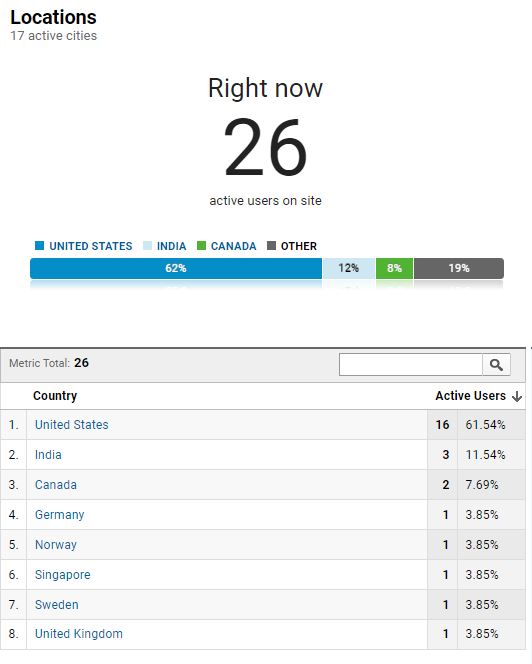
The report contains several cards that summarize recent user activity. The exact presentation can evolve as Google updates GA4, but the report is built around understanding recent users, their acquisition sources, the content they view, and the actions they complete.
Google also provides a separate Realtime Pages report for a more focused look at which website pages or application screens are being viewed during the last 30 minutes.
If you do not have access to a live property but want to become familiar with GA4, Google continues to offer an Analytics demo account using real business data from properties such as the Google Merchandise Store. It is a useful environment for learning reports without changing data in your own Analytics property.
Monitor Active Users in Real Time
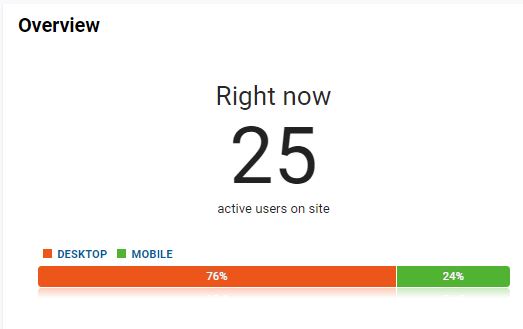
One of the first metrics you will see is the number of active users during the recent Realtime window.
GA4 can show activity during the last 5 and 30 minutes, along with activity per minute. This provides a fast indication of whether traffic is arriving after a campaign, announcement, social post, email, or other marketing activity.
Imagine that you send a newsletter to 20,000 subscribers at 10:00 a.m. Opening the Realtime report shortly afterward can help confirm whether users are reaching the website.
Likewise, if a product announcement is receiving significant attention but Analytics shows little or no activity, that may be a reason to investigate campaign links, tracking implementation, landing-page functionality, or another part of the customer journey.
Realtime should be used as an immediate signal rather than the final measure of campaign success. Longer-term evaluation requires deeper analysis of traffic, engagement, conversions, and revenue.
Understand Where Recent Users Came From
Acquisition information can help you understand how recently active users originally reached your digital property.
GA4’s Realtime report may show users by dimensions such as source, medium, source platform, or campaign. This can provide quick confirmation that traffic associated with a marketing initiative is reaching your website.
For example, after publishing a LinkedIn campaign, launching Google Ads, sending an email newsletter, or earning referral coverage, you can check whether relevant activity is appearing.
Proper campaign tagging becomes important here. Consistent UTM parameters make it easier to distinguish campaigns and understand the marketing source behind traffic.
If you need a deeper analysis of how marketing channels contribute to outcomes, move beyond Realtime and evaluate your acquisition and attribution models. Realtime is best for immediate visibility; attribution requires a broader view of the customer’s path.
See Which Pages People Are Viewing
GA4 makes it possible to see which content is attracting attention during the Realtime window.
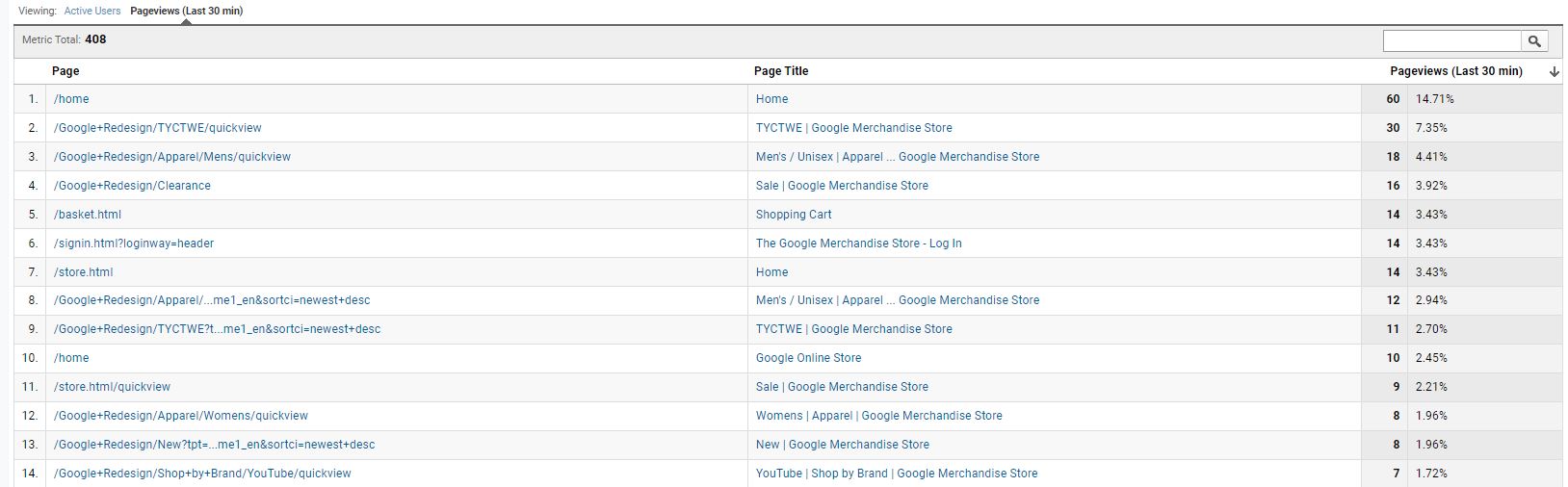
Within the main Realtime report, you can review views by page title or screen name. Google also provides the dedicated Realtime Pages report, which focuses on pages and screens viewed during the last 30 minutes.
The report includes metrics such as Views and Active users and can help you identify which URLs are currently receiving attention.
This is useful after:
a new blog post is published, a landing page launches, a promotional email is sent, a story receives media coverage, a social post begins generating traffic, or an ecommerce promotion goes live.
Suppose a campaign is intended to send visitors directly to a new service page, but most active users are appearing on the homepage instead. That does not automatically mean something is wrong, but it gives you a reason to review your links, redirects, campaign setup, and user journey.
For more detailed behavior analysis, combine page-level information with metrics such as engagement and conversions rather than treating pageviews alone as success.
Track Events as They Happen
Events are central to Google Analytics 4.
Unlike Universal Analytics, which relied heavily on separate categories such as pageviews, events, and Goals, GA4 uses events to measure interactions across websites and apps.
Examples can include page views, scrolling, clicks, form interactions, purchases, file downloads, video engagement, and custom actions configured for your business.
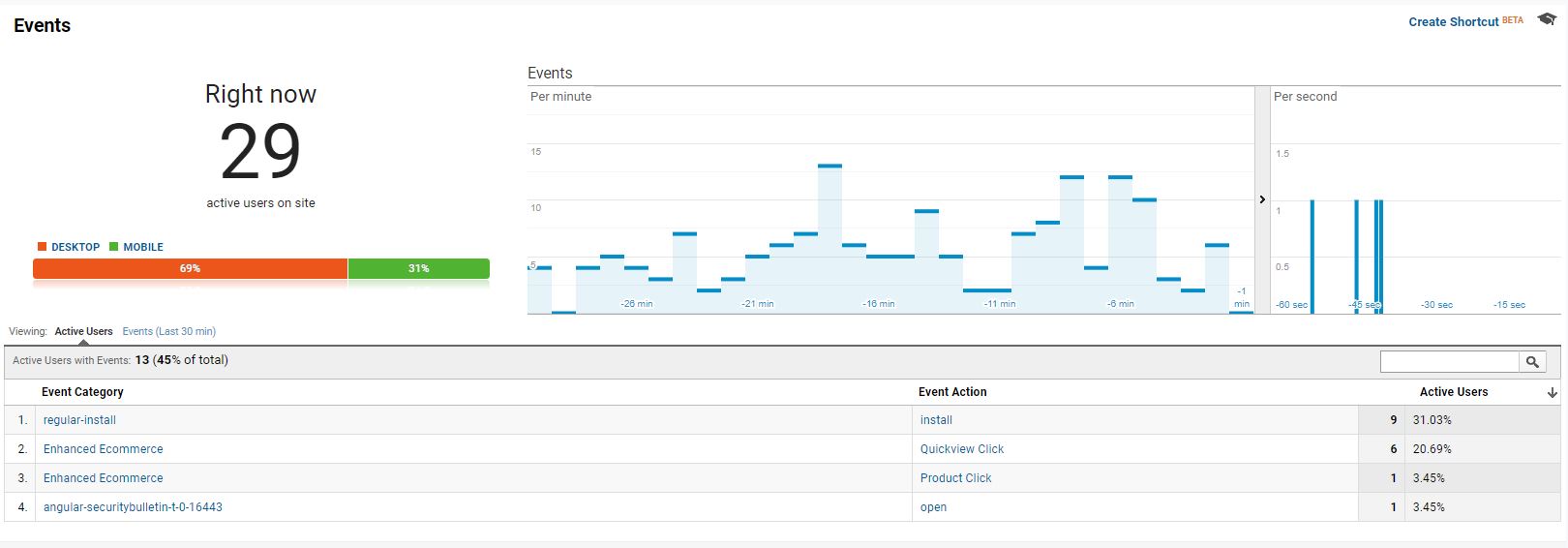
The Event count by Event name card in the Realtime report shows events collected during the last 30 minutes.
This is extremely useful when validating a new tracking implementation.
For example, if you have created an event for a lead form submission, you can submit the form yourself and check whether that event appears in Realtime.
However, seeing an event does not necessarily mean the entire measurement setup is correct. Check event naming, parameters, duplication, and the conditions that cause the event to fire.
Reliable event tracking is especially important when evaluating customer journeys and marketing funnels, because poor data can make even a well-designed report misleading.
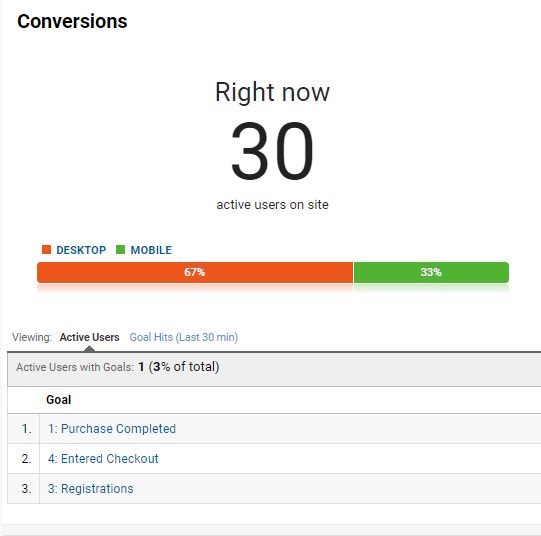
Monitor Key Events Instead of Universal Analytics Goals
One of the biggest terminology changes for anyone familiar with old Google Analytics is the move away from Universal Analytics Goals.
In GA4, an event that represents an action particularly important to your business can be marked as a key event.
Depending on the organization, useful key events might represent actions such as a completed purchase, submitted lead form, booked consultation, newsletter registration, or another meaningful business outcome.
GA4’s Realtime report includes a Key events by Event name card. This can help confirm whether Analytics is recording those important actions.
For example, if generate_lead is configured as a key event, you can complete the relevant form and look for the event in Realtime.
The distinction between ordinary activity and meaningful business outcomes is important. Thousands of page views may look impressive, but understanding which activities lead to real results is essential when trying to convert traffic into customers.
Realtime Is Useful for Campaign Launches
One of the most practical uses of Google Analytics Realtime is monitoring a campaign immediately after launch.
Consider an email campaign promoting a limited-time offer. After sending it, Realtime can provide an early indication that users are reaching the website and interacting with the intended content.
The same approach can be useful for:
product launches, press releases, webinars, social campaigns, paid advertising, influencer campaigns, flash promotions, new landing pages, and important announcements.
If you are running paid campaigns, Realtime can provide quick directional confirmation that traffic is arriving, while your full campaign analysis should also evaluate cost, conversion rates, revenue, and return on ad spend.
That broader view is particularly important when deciding how SEO and PPC contribute to overall marketing performance.
Use Realtime for Tracking Quality Assurance
Realtime is also valuable when implementing or changing analytics tracking.
If you add a new event, install GA4 on a new page, update Google Tag Manager, change a form, or launch a redesigned section of the website, you can perform the action and see whether activity is reaching Analytics.
This can help identify basic implementation problems before they affect weeks of reporting.
For example, if you expect a form submission event but nothing appears, review whether:
the correct GA4 property is open, the Google tag is firing, the event conditions are correct, the expected interaction actually occurred, consent or browser settings are affecting measurement, or the event requires additional configuration.
Do not assume that “no data” automatically means no visitors. Analytics depends on successful measurement, so tracking problems can create an incomplete picture of website activity.
GA4 Realtime vs DebugView
Realtime and DebugView are related, but they serve different purposes.
The Realtime report provides a broader view of recent activity across your website or app. It is useful for monitoring campaigns, checking traffic, and seeing whether events and key events are reaching Analytics.
DebugView, on the other hand, is designed for detailed event troubleshooting. When debug mode is enabled, it lets you examine the events generated by a specific test user and inspect how those events are being sent.
A simple way to think about the difference is:
Realtime: “Is this activity reaching GA4?”
DebugView: “Is this specific event implementation working correctly?”
If you are testing a complex ecommerce or lead-tracking implementation, DebugView is usually more appropriate than trying to diagnose every detail from the Realtime report.
Realtime Is Not a Complete Funnel Analysis Tool
The old Universal Analytics approach sometimes encouraged marketers to watch users moving through pages in real time and infer where customers were dropping out of a funnel.
GA4 provides better tools for this type of analysis.
Realtime can tell you what is happening recently, but diagnosing where users consistently abandon a sales or lead-generation journey requires more data.
Use GA4 Explorations, funnel analysis, event reporting, and longer-term performance data to understand patterns such as users viewing a product but not adding it to their cart, starting checkout but not purchasing, or reaching a lead form without submitting it.
Once those patterns are identified, marketers can work on conversion-rate improvements rather than relying on observations from a few live visitors.
Do Not Judge Campaign Performance From Realtime Alone
Realtime is compelling because watching users appear on a dashboard makes marketing activity feel immediate. But it can also encourage premature conclusions.
A campaign that shows little traffic during its first 10 minutes may perform strongly later. A campaign that produces a sudden traffic spike may generate few qualified leads.
Use Realtime to confirm and monitor activity, then use the appropriate standard reports to evaluate actual performance.
Important metrics may include qualified leads, purchases, engagement, customer acquisition cost, conversion rate, revenue, and return on advertising spend.
The goal of Analytics should be to connect marketing activity with outcomes rather than simply collecting numbers.
Common Reasons GA4 Realtime Data May Look Wrong
When Realtime data does not match expectations, start with the basics.
Make sure you are viewing the correct GA4 account and property. Confirm that your tracking code or Google Tag Manager implementation is active. Test whether expected events are actually firing, and check whether changes to consent settings, site templates, plugins, or tracking configurations have affected data collection.
Also remember that Analytics should not be treated as an exact live counter of every person viewing a website. Tracking limitations, privacy choices, browser behavior, and implementation decisions can all affect measurement.
If your reporting repeatedly conflicts with business activity, the solution is not to guess. Audit the measurement setup and confirm that the underlying data is reliable before making decisions from it.
When Should You Use Google Analytics Realtime?
Google Analytics Realtime is most valuable when you need an immediate answer to a specific question.
Use it when you have just launched a campaign and want to confirm traffic is arriving. Use it when a new tracking event has been deployed and you want to verify data collection. Use it after publishing major content or sending an email campaign. Use it when an unexpected traffic spike occurs and you want to understand what users are viewing.
For long-term decision-making, move to the rest of GA4 and connect the findings to your wider digital marketing strategy.
Realtime tells you what is happening now. Good analytics tells you what that activity means for the business.
Frequently Asked Questions About Google Analytics Realtime
What does Realtime mean in Google Analytics 4?
Google Analytics Realtime is a report showing recent activity on your website or app. GA4 can display active users over the last 5 and 30 minutes along with information about pages, traffic sources, events, key events, audiences, and other recent user activity.
How long does GA4 Realtime data cover?
The primary GA4 Realtime reporting window covers activity from the last 30 minutes. GA4 also provides visibility into active users during the last 5 minutes, allowing marketers to monitor very recent activity.
How can I see what pages users are viewing right now?
Open the GA4 Realtime report to see views by page title or screen name. You can also use the dedicated Realtime Pages report, which shows Views and Active users by page path or screen class during the last 30 minutes.
Can GA4 Realtime show conversions?
GA4 uses key events to identify actions that are particularly important to a business. The Realtime report includes a Key events by Event name card that can be used to verify that recently triggered key events are being recorded.
Why is my GA4 Realtime report not showing users or events?
Possible causes include viewing the wrong GA4 property, an incorrectly installed Google tag, event configuration problems, consent or browser restrictions, or a tracking change that prevents data from being collected. Test the implementation and use DebugView when you need to troubleshoot individual events.
Make Realtime Data Useful, Not Just Interesting
The Google Analytics Realtime report is one of the fastest ways to confirm what is happening on your website or app after a campaign, content launch, or tracking change.
Its real value is not watching numbers move on a screen. It is being able to answer practical questions: Did the campaign send traffic? Are visitors reaching the intended page? Is the new event being recorded? Are important key events appearing?
Use Realtime for immediate monitoring and validation, DebugView for detailed implementation testing, and GA4’s broader reports and explorations for longer-term analysis.
When those tools are used together, Google Analytics becomes much more than a traffic counter. It becomes a measurement system that can help connect user behavior, marketing activity, and meaningful business outcomes.
About The Author